Moving from Samsung S25 to Samsung S26 is simple when you do it in the right order: prepare the old phone, start the transfer with Samsung Smart Switch, check the apps and make sure all accounts remain synchronized. The guide below is designed for a Galaxy-to-Galaxy transfer, so it applies when moving from Samsung S25, S25+ or S25 Ultra to Samsung S26, S26+ or S26 Ultra.
The practical recommendation is to use Smart Switch with a USB-C cable when you have many photos, videos, apps and large files. Wireless transfer works well, but a cable is usually more stable and faster.
In brief: what you need to do
- Update Samsung S25 and Samsung S26 to the latest available software version.
- Charge both phones above 50% and connect them to a stable Wi-Fi network.
- Create a backup before the transfer: Samsung Cloud, Google Backup, Google Photos or OneDrive, depending on what you use.
- Open Samsung Smart Switch on Samsung S26 and choose to transfer data from the old phone.
- Choose the transfer method: USB-C cable, wireless or restoration from a backup.
- Select the data you want: contacts, messages, photos, videos, files, settings, apps and compatible app data.
- After the transfer, sign in to your Google, Samsung, Microsoft, WhatsApp, banking and other important accounts.
- Check your photos, apps, synchronized accounts, passwords, two-factor authentication and files in important folders.
What can be transferred from Samsung S25 to Samsung S26
Samsung Smart Switch can transfer a great deal of data between two Galaxy phones: contacts, calendars, messages, call history, photos, videos, DRM-free music, documents, settings, wallpaper, preferences, some app data and the list of installed apps. Some items transfer completely only between two Galaxy phones, which is the case here.
| Data | Can it be moved? | What you need to check |
|---|---|---|
| Photos and videos | Yes, from the phone storage and selected folders | Check Gallery, Google Photos, OneDrive and the WhatsApp/Downloads folders |
| Apps | Yes, mostly as an installation list; some data transfers only if the app allows it | Banking, authentication and streaming apps usually require you to sign in again |
| Contacts and calendars | Yes, through Smart Switch and account synchronization | Confirm that they are saved to Google, Samsung or Microsoft, not only locally |
| Messages and call history | Yes, normally through Smart Switch | Check the default SMS/RCS app after the transfer |
| Accounts | They are not copied as active sessions | You need to sign in again; synchronization continues after login |
| Passwords, Samsung Pass, Secure Folder | Partially, depending on settings and security | Have your Samsung account password, 2FA codes and unlock method ready |
Preparing the old Samsung S25 phone
Before you tap the transfer button, it is worth doing some basic cleanup on Samsung S25. This is not because Smart Switch would otherwise fail, but because every successful migration begins with organized data.
- Delete large files you no longer need: duplicate videos, old archives and forgotten downloads.
- Open Gallery and check whether important albums are stored locally or synchronized with the cloud.
- Go to Settings > Accounts and backup and review all connected accounts.
- Enable synchronization for contacts, calendars, notes, browser data and photos wherever you use these services.
- Update your apps from Galaxy Store and Play Store.
- Write down important passwords or check that they are available in the password manager you use.
- If you have an eSIM, banking apps or authenticators, check the migration steps for each service in advance.
Recommended method: cable transfer with Smart Switch
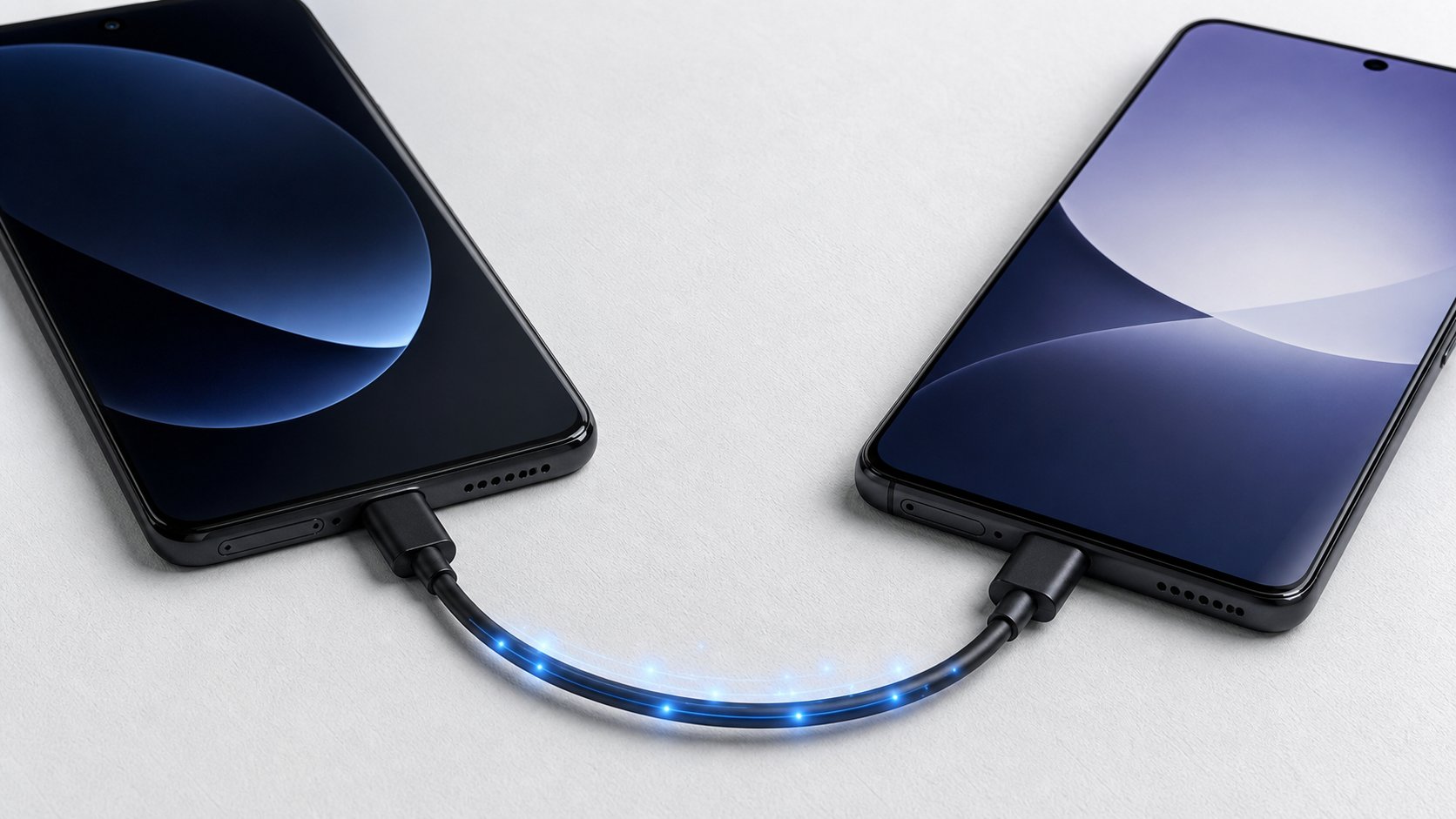
A cable transfer is the best choice when you want to move many photos, videos and large files. You need a good USB-C-to-USB-C cable, ideally the original one or a quality alternative that supports data transfer rather than charging only.
- Turn on Samsung S26 and complete the initial steps until you reach the option to copy data. If you have already finished the initial setup, open the Smart Switch app manually.
- On Samsung S26, choose to receive data from a Galaxy/Android phone.
- Connect Samsung S25 and Samsung S26 with a USB-C cable.
- On Samsung S25, accept the permissions requested for data access.
- Wait while the content is scanned. At this stage, Smart Switch prepares the list of photos, apps, messages, files and settings.
- Choose what you want to transfer. For a complete migration, select contacts, messages, calls, photos, videos, documents, apps, settings and the Home screen.
- Keep both phones unlocked and connected until the transfer finishes. Do not disconnect the cable during the transfer.
- After completion, Samsung S26 may continue installing apps in the background. Leave it charging and connected to Wi-Fi.
If Smart Switch shows a long time estimate, do not stop the transfer immediately. The first few minutes may be used to calculate the data. However, if the transfer remains stuck at the same point for a long time, restart both phones and try again, preferably with a different cable.
Wireless method: suitable for smaller transfers
Wireless transfer is useful if you do not have a cable available or have little data to move. For tens or hundreds of GB of photos and videos, a cable remains the safer option. Wireless transfer depends on the stability of the connection between the phones and may take longer.
- Open Smart Switch on both phones.
- On Samsung S26, choose Receive data, and on Samsung S25, choose Send data.
- Select wireless transfer.
- Confirm the connection between the phones.
- Choose the data you want and start the transfer.
Keep the phones close to each other, do not enable a hotspot or VPN or use demanding apps during the transfer, and keep the screens active if you notice that the process is being interrupted.
How to move all your apps
Smart Switch can retrieve the list of apps from Samsung S25 and install compatible apps on Samsung S26. In many cases, the apps appear automatically on the new phone, but the internal data for each app depends on the developer's rules. Some apps restore their data after you sign in, others use their own backup, and some need to be configured manually.
- WhatsApp: check the Google Drive backup or the direct transfer option within the app before deleting data from S25.
- Banking apps: prepare to reactivate them on Samsung S26. The active session is usually not transferred for security reasons.
- Authenticator / 2FA: export the accounts from the app you use or have your recovery codes ready.
- Streaming apps: you will need to sign in again and may need to download offline content again.
- Games: check whether your progress is linked to Google Play Games, Samsung, Facebook or the game's own account.
- Work apps: company profiles, MDM, Microsoft Authenticator, VPN or business email may require separate approval.
After the migration, open Play Store and Galaxy Store and let all apps update. Then open important apps one by one: banking, email, WhatsApp, authenticator, work apps, cloud storage, notes and apps containing personal data.
How to move photos and videos
Photos can exist in two places: physically on the phone or synchronized with the cloud. Smart Switch transfers local files, while services such as Google Photos, OneDrive or Samsung Cloud display their content after you sign in and enable synchronization.
- In Gallery, check the Camera, Screenshots, Downloads, WhatsApp Images, WhatsApp Video albums and the folders of other apps you use.
- If you use Google Photos, open the app on S25 and check that the backup is complete before the migration.
- If you use OneDrive in Samsung Gallery, check synchronization and connect the same Microsoft account on Samsung S26.
- If you have photos in Secure Folder, handle them separately. Secured content may require a dedicated backup/restore process and Samsung authentication.
- After the transfer, compare the approximate number of photos and check the most important albums, not only the first images in Gallery.
Do not reset Samsung S25 immediately after the transfer. Keep it for a few days, until you confirm that your important photos, videos, documents and apps are on Samsung S26.
How to keep your accounts synchronized
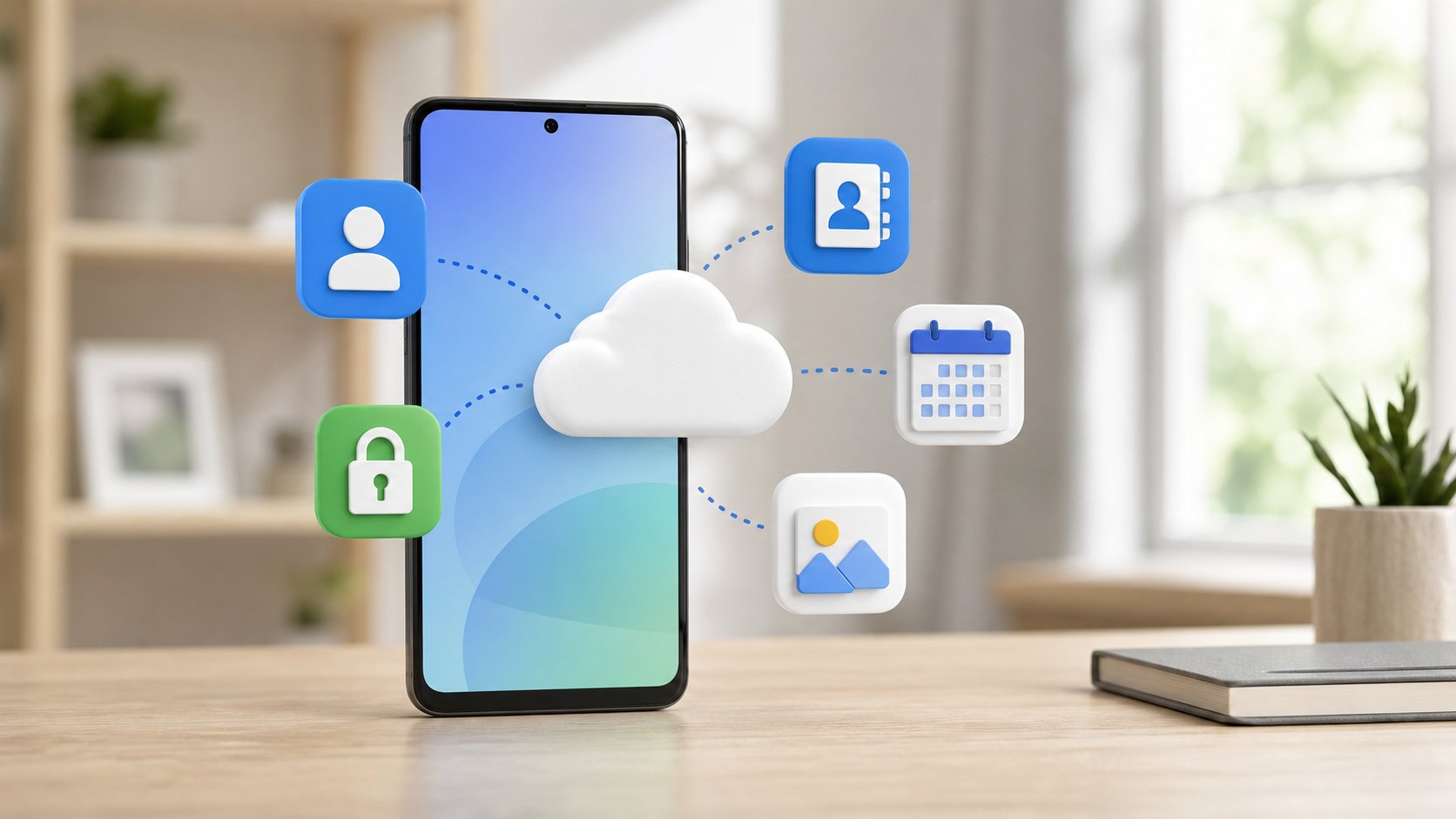
One important point: data from synchronized accounts is not copied as active sessions through Smart Switch. It reappears on Samsung S26 after you sign in to the same accounts and enable synchronization. This is normal and more secure.
- Google account: check synchronization for Contacts, Calendar, Gmail, Drive, Keep, Chrome, Photos and Backup.
- Samsung account: sign in for Samsung Cloud, Samsung Pass, Find, Galaxy Store, Notes and Samsung settings.
- Microsoft account: sign in for Outlook, OneDrive, Teams, Office and photo synchronization if you use Gallery + OneDrive.
- WhatsApp: use the same phone number and the correct restoration method.
- Business accounts: check your work profile, email app, VPN, Microsoft Authenticator or company policies.
On Samsung S26, go to Settings > Accounts and backup > Manage accounts. Open each important account and check that synchronization is enabled. If an account shows a synchronization error, sign out and sign in again, then check the password, two-factor authentication and internet connection.
Additional backup before resetting the old phone
Even if the transfer appears successful, create one final backup before selling, handing over or resetting Samsung S25. Ideally, you should have at least two forms of protection: the direct transfer to S26 and a backup in the cloud or on a computer.
- Google Backup for apps, settings, contacts, messages and call history.
- Google Photos or OneDrive for photos and videos.
- Samsung Cloud for compatible Samsung data.
- A local backup on a PC/Mac with Smart Switch, useful if you have a large number of files.
- A separate export for authenticators, banking apps, passwords or business data.
Checks after the migration
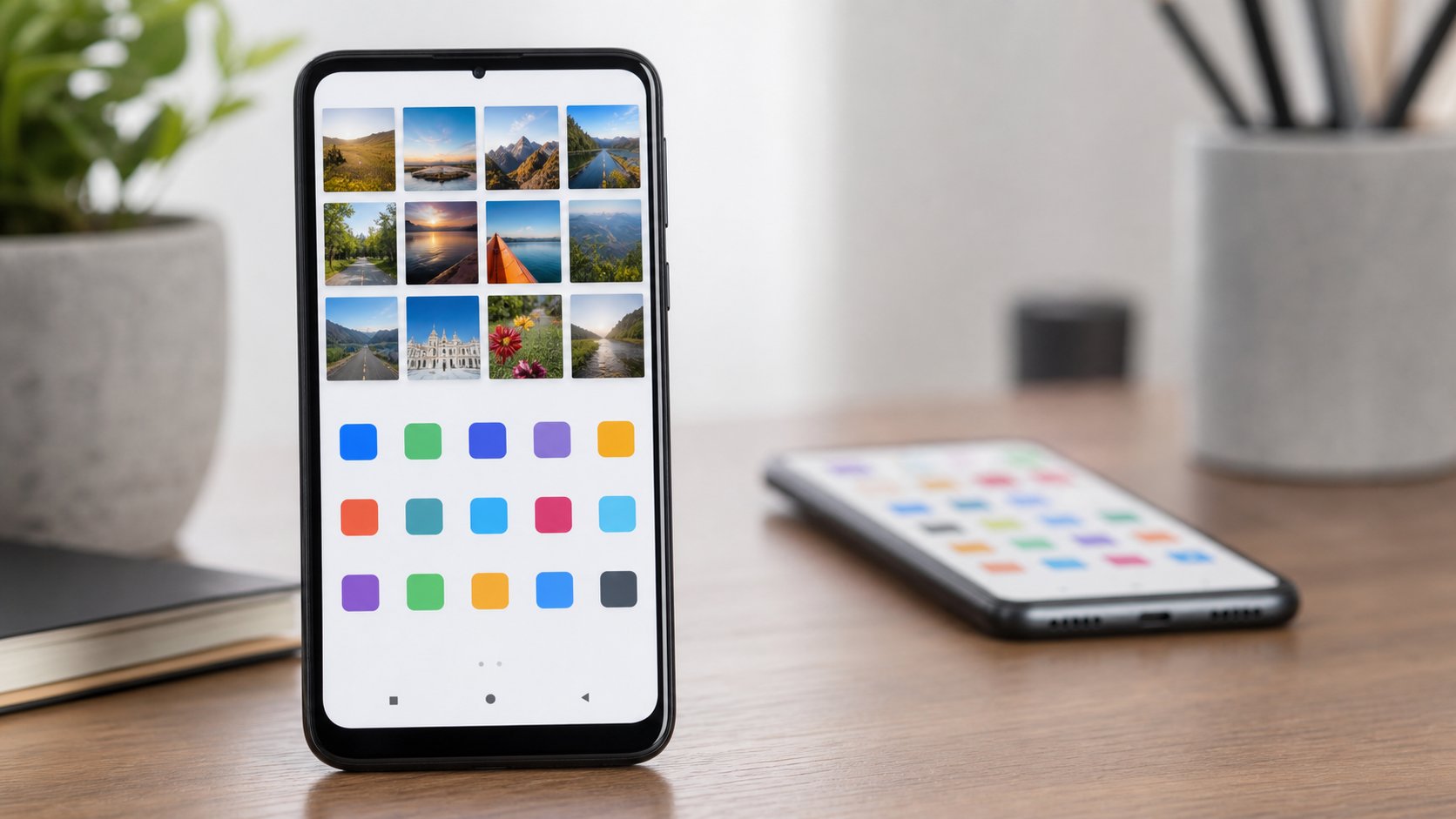
After Samsung S26 finishes transferring the data and installing the apps, perform an organized check. Do not rely only on the Home screen looking similar.
- Open Contacts and check that important names appear.
- Open Gallery and look for the main albums.
- Check WhatsApp: conversations, photos, documents and backup settings.
- Open the banking apps and confirm that they can be reactivated on S26.
- Check the two-factor authentication app.
- Open Email and Calendar and check synchronization.
- Check the files in Downloads, Documents, Recorder, Notes and Secure Folder.
- Go to Settings > Accounts and backup and confirm that backup is enabled for the new phone.
- Test calls, SMS/RCS, mobile data, eSIM/SIM, Bluetooth, your Galaxy Watch and headphones.
What to do if not all data was transferred
If apps, photos or settings are missing, do not reset Samsung S25. Start by identifying the source of the problem: local data, an unsynchronized account, an app that does not allow its data to be copied or an interrupted transfer.
- Photos are missing: check whether they were in Google Photos, OneDrive, Secure Folder, an external card or WhatsApp folders.
- Apps are missing: look for them in Play Store and Galaxy Store. Some apps are not reinstalled automatically if they are no longer compatible or no longer available in the store.
- App data is missing: open the relevant app and sign in to its account. Some data is stored on the app's server, not on the phone.
- Contacts do not appear: check the source of the contacts on S25: Google, Samsung, SIM, phone or Outlook.
- The transfer gets stuck: restart both phones, update Smart Switch and try again with a cable.
- Authentication does not work: use recovery codes, the old phone or the secondary method configured for the account.
When you can reset Samsung S25
Reset Samsung S25 only after you have confirmed that Samsung S26 contains all essential data. The safe recommendation is to keep the old phone active for 3–7 days, especially if you have banking accounts, two-factor authentication, work data or many locally stored photos.
- Check the backup on Samsung S26.
- Disable locks or services linked to the old device only after the new phone is fully functional.
- Remove accounts only when you are certain that you no longer need confirmations on S25.
- Before selling or handing it over, use the reset option in Settings and erase the microSD card if one is present.
Frequently asked questions
Are all apps transferred from Samsung S25 to Samsung S26?
Most compatible apps are transferred, and Smart Switch can reinstall the apps on Samsung S26. However, internal data depends on each app. Banking apps, authenticators, streaming services and some business apps require you to sign in again or reactivate them.
Do Google Photos images need to be transferred with Smart Switch?
If the photos are already fully backed up in Google Photos, they appear on Samsung S26 after you sign in with the same Google account. If you also want the original files stored locally on the phone, transfer them with Smart Switch or download them later.
Does account synchronization remain active?
Yes, but not by copying active sessions. Synchronization continues after you sign in to the same accounts on Samsung S26 and enable it for each service: Google, Samsung, Microsoft, WhatsApp, email or business apps.
Is a cable or wireless transfer better?
For a complete migration, a USB-C cable is usually better. Wireless transfer is convenient, but it may take longer and is more sensitive to interruptions, especially if you have many videos or large files.
Useful official sources
For up-to-date technical details, you can consult the official information about transferring data with Samsung Smart Switch, Samsung's list of content types that can be transferred through Smart Switch and Google's guide to backup and restoration on Android.